Messaging Channels
Conversations supports multiple communication channels in a single unified thread. You can send and receive messages across SMS, email, WhatsApp, and voice - all from the same inbox, with no app switching required.
Supported Channels
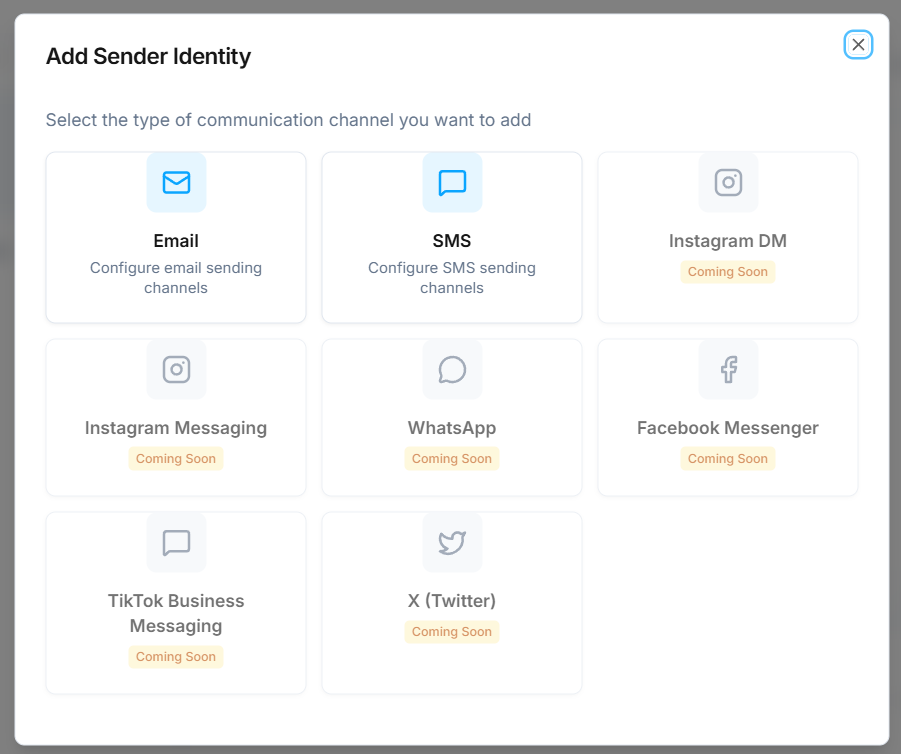
- SMS - send and receive text messages through your assigned phone numbers.
- Email - manage email conversations alongside your other channels.
- Voice - inbound and outbound voice calls appear in the conversation timeline alongside messages.
- WhatsApp (Beta) - send and receive WhatsApp messages through a connected WhatsApp Business number. See WhatsApp below.
- Instagram DM and Facebook Messenger (Beta) - reply to direct messages from your connected Instagram account and Facebook Page.
Coming soon: TikTok Business Messaging and X (Twitter).
WhatsApp
WhatsApp is a Beta feature. Turn on Social Inbox and WhatsApp Business in Settings > Labs first.
To connect a number, go to Settings > Integrations > Social Media, click Add Social Media Account and choose WhatsApp. Before you are sent to Meta's sign-up, you are asked how the number should work.
Two ways to connect a number
Keep using the WhatsApp Business app on this number (selected by default). Choose this when the number is already in the WhatsApp Business app on your phone.
- The number must already be active in the WhatsApp Business app, not the regular WhatsApp app.
- Meta shows a QR code. Scan it from the WhatsApp Business app on the phone, so keep the phone with you.
- Messages are mirrored both ways. A customer's message reaches the phone and . A reply typed on the phone shows in the conversation, marked Sent from the WhatsApp Business app. A reply sent from shows on the phone.
- Up to 90 days of the phone's chat history is copied into over the first day after you connect. Messages older than a day come in already read.
- Limits while the number is in both places: 20 messages per second, no groups or calls through , no disappearing or view-once messages, broadcast lists off in the app, and the profile photo stays managed in the app.
The WhatsApp card then shows WhatsApp Business app + .
Use this number only in . The number stops working in the WhatsApp Business app. It must not be active in the WhatsApp or WhatsApp Business app when you connect it, or Meta refuses the connection. The WhatsApp card then shows only.
Reconnecting a number asks the same question again.
Your AI agent and replies from the app
When a conversation is answered from the WhatsApp Business app, the AI agent stays quiet on that conversation for a while, so the customer does not get two answers. The default is 10 minutes.
To change it, open the AI agent and click Channels at the top of the editor. Under the WhatsApp channel (turned on for this agent, with Direct messages on), set Pause the AI agent after someone replies from the app, in minutes, from 0 to 1440. 0 means never pause. The setting belongs to the channel, and the same pause applies to replies typed in the Instagram app or on Facebook.
Stopping the sharing from the phone
Sharing a number with the WhatsApp Business app is ended on the phone: WhatsApp Business app > Settings > Account > Business Platform > Disconnect. The number keeps working in the WhatsApp Business app and stops sending and receiving in . The WhatsApp card then says it needs reconnecting, with a sentence saying what happened. Click Reconnect to bring it back.
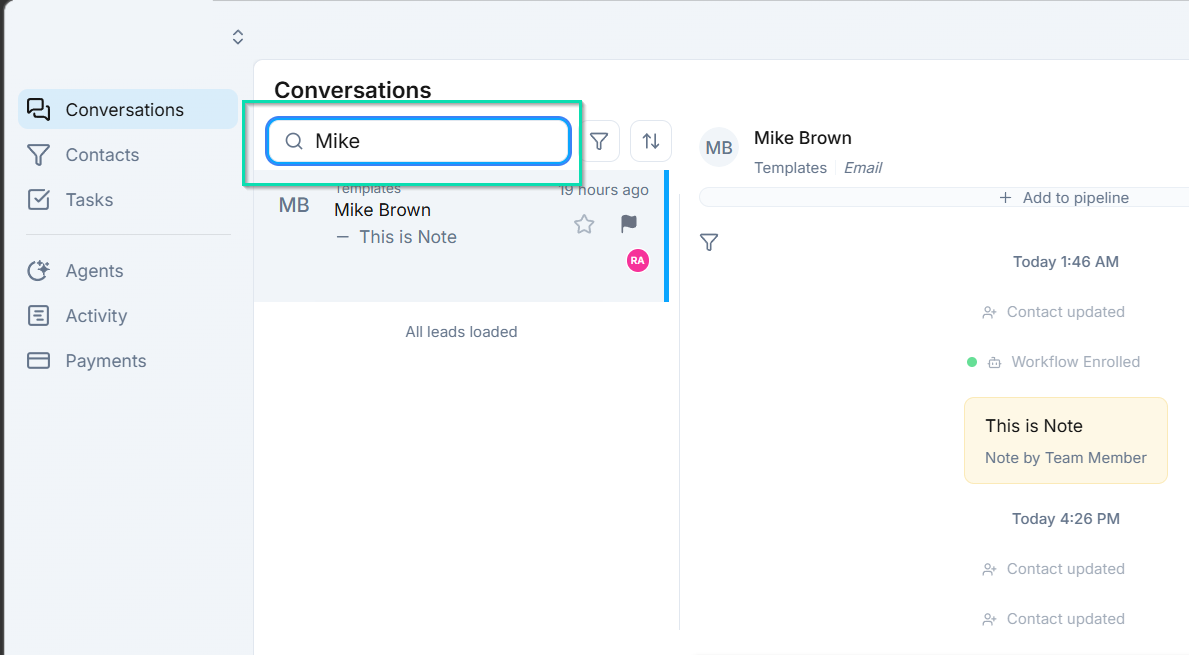
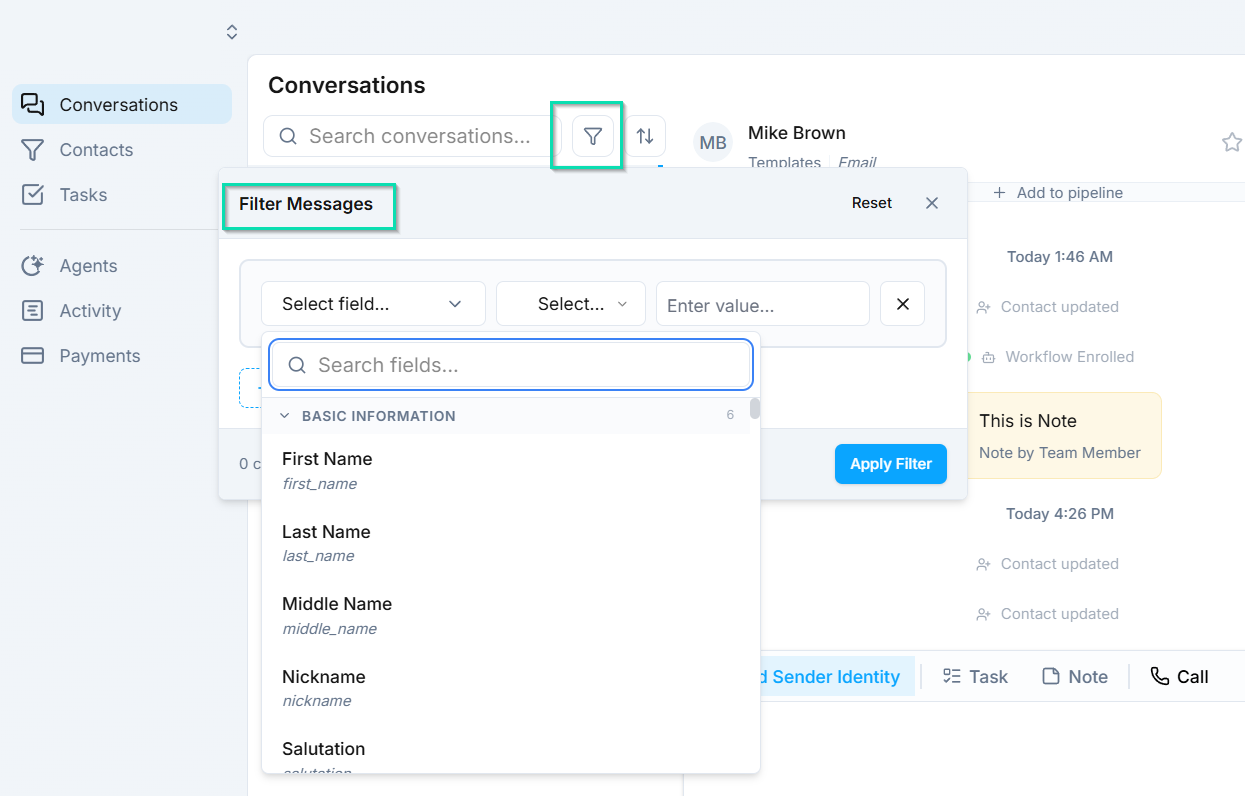
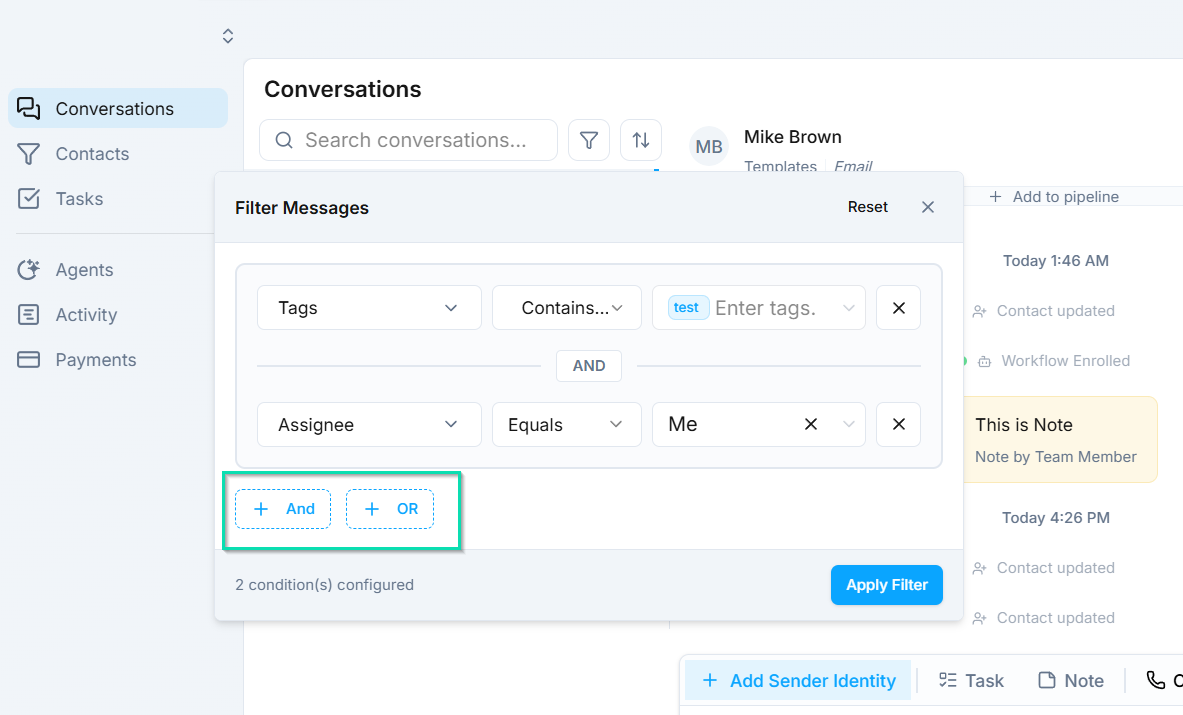
Filtering and Searching
Selecting a Reply Channel
When composing a reply, you can choose which channel to send through directly in the reply compose box. For example, you might see options like "Reply via SMS" or "Reply in WhatsApp."
This means you can start a conversation on one channel and continue it on another. If a customer texts you but you need to send a detailed response, switch to email. If a customer emails you but you need a quick confirmation, reply via SMS.
Unified Conversation Thread
All messages from every channel appear in a single chronological thread. You will see indicators showing which channel each message was sent or received through, so the full communication history is always clear.
This unified approach provides several benefits:
- No app switching - manage SMS, email, WhatsApp, and voice from one screen.
- Complete history - every interaction with a contact is visible in one place, regardless of channel.
- Consistent experience - your team always has full context, no matter who picks up the conversation.
- Flexible responses - reply through whatever channel makes the most sense for the situation.
Next Steps
- Sender Identities - configure the phone numbers and email addresses used for outbound messages
- Phone Setup - set up phone numbers for SMS and voice